Operating system: part 2
Lesson Intro
We know that “learning the basics” isn’t always super-amazing-exciting! But it’s a lot more fun than spending an hour at a job you don’t like, right?
It’ll also save you hundreds, if not thousands of hours. It will also make everything moving forward much more efficient!
The goals
-
Think about how you'll often have to teach the user
What is the most important thing for the user to know? What is the second most important thing?
-
Note that things change
The major conventions don’t change as often, but learning how to learn a new interface is more important than memorizing the details.
-
Get acquainted with the System Preferences
Connect some Bluetooth devices.
-
Start getting used to "Shortcuts" and using modifier keys
There are a lot of different key combinations and they will do different things in each context.
What is the most important thing to know?
In the first OS exploration, we discovered a handful of things:
- The Dock (the row of icons at the bottom)
- The Menu bar
- The Finder
- The Desktop
- … What else? Can you remember?
Here’s some extra official Apple documentation about their user interface: Feb 2022 (archived) / already replaced with this latest documentation.
If you end up in a design role with this much impact there will often be a whole team just to write the documentation. Some documentation is effective. Some is terrible. Here’s another example of how someone might teach you how to use an OS: https://docs.oracle.com/cd/E19504-01/802-5817/6i9i42q74/index.html
The menu bar changes based on what Application is open (more specifically in focus). Many programs (or apps for short) can be open at the same time, but only one can be in focus. Why is that?
Today, we continue that idea
What’s next? What are the next most important things to know?
- You’ll need to know about the System Preferences, also known as Settings.
- You’ll most likely need to connect some peripherals or accessories with bluetooth.
- Some apps want to have access to your inputs or outputs. You’ll need to give them permission.
Key
concept
Modifier key
These keys temporarily modify the normal action of another key. By themselves, modifier keys usually do nothing. Wikipedia reference
If you want to save space you need to minimize the number of surface areas somehow. Some of these things have historic meaning. Shift ⇧ actually shifted the type-writer keys to allow a capital letter to print.
What do you think these symbols mean?
- Command: ⌘
- Control: ^
- or Option: ⌥
But they are pretty ugly, and we find them hard to read. For whatever reason, we just haven’t memorized them other than by muscle memory. The ⇧ for shift is nice and the ⌘ is clear too. The option is just like… what?
They do have a history if you care to look: https://www.quora.com/What-is-the-origin-of-the-Macs-option-key-symbol-⌥
A longer list of shortcuts: https://support.apple.com/en-us/HT201236
List of symbols: https://support.apple.com/guide/mac-help/what-are-those-symbols-shown-in-menus-cpmh0011/mac
Xerox Star interface
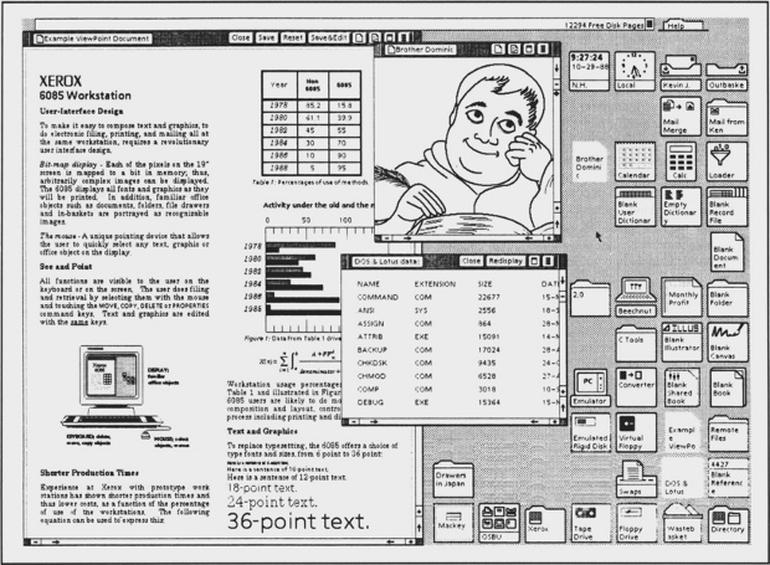
Xerox Star interface, c.1982. Image: Xerox
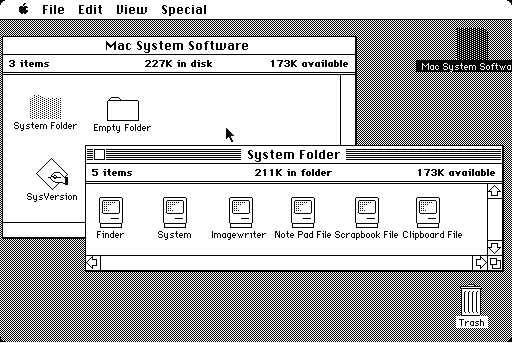
The original Macintosh System Software and Finder
Windows 95

Microsoft
Ubuntu
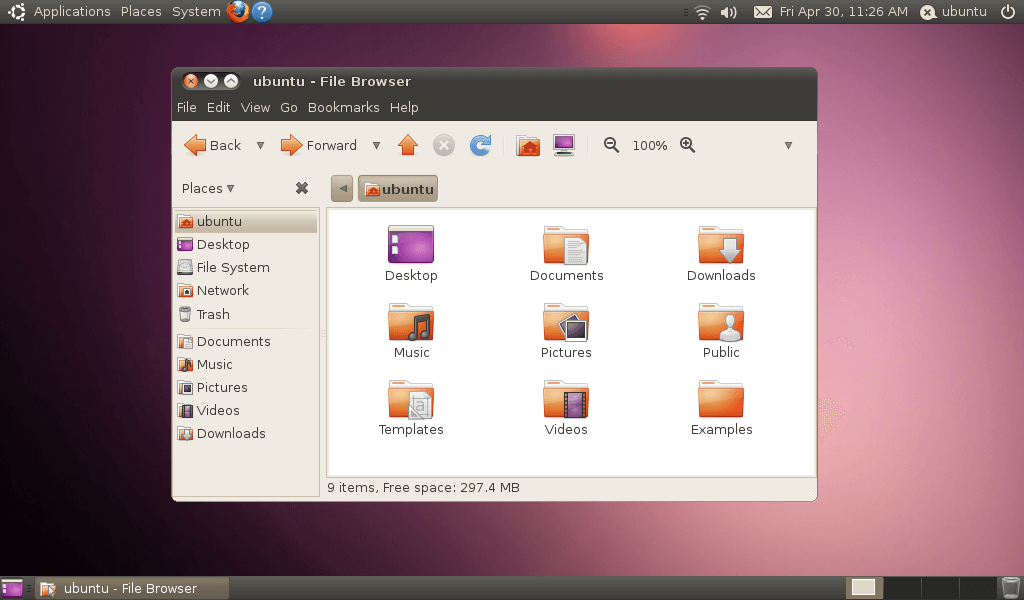
An OS for Linux.
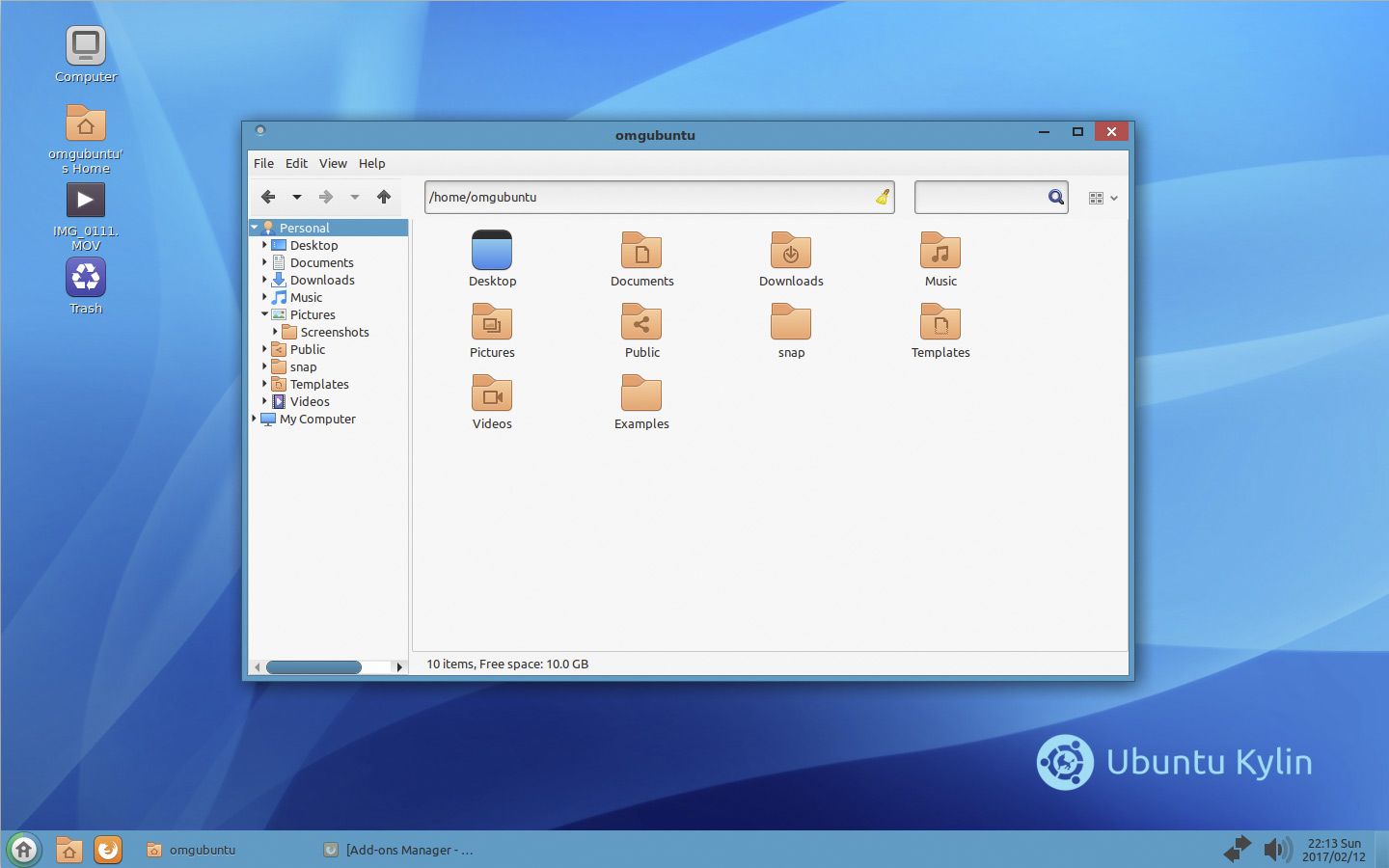
Another version of the Ubuntu User Interface
Windows 10
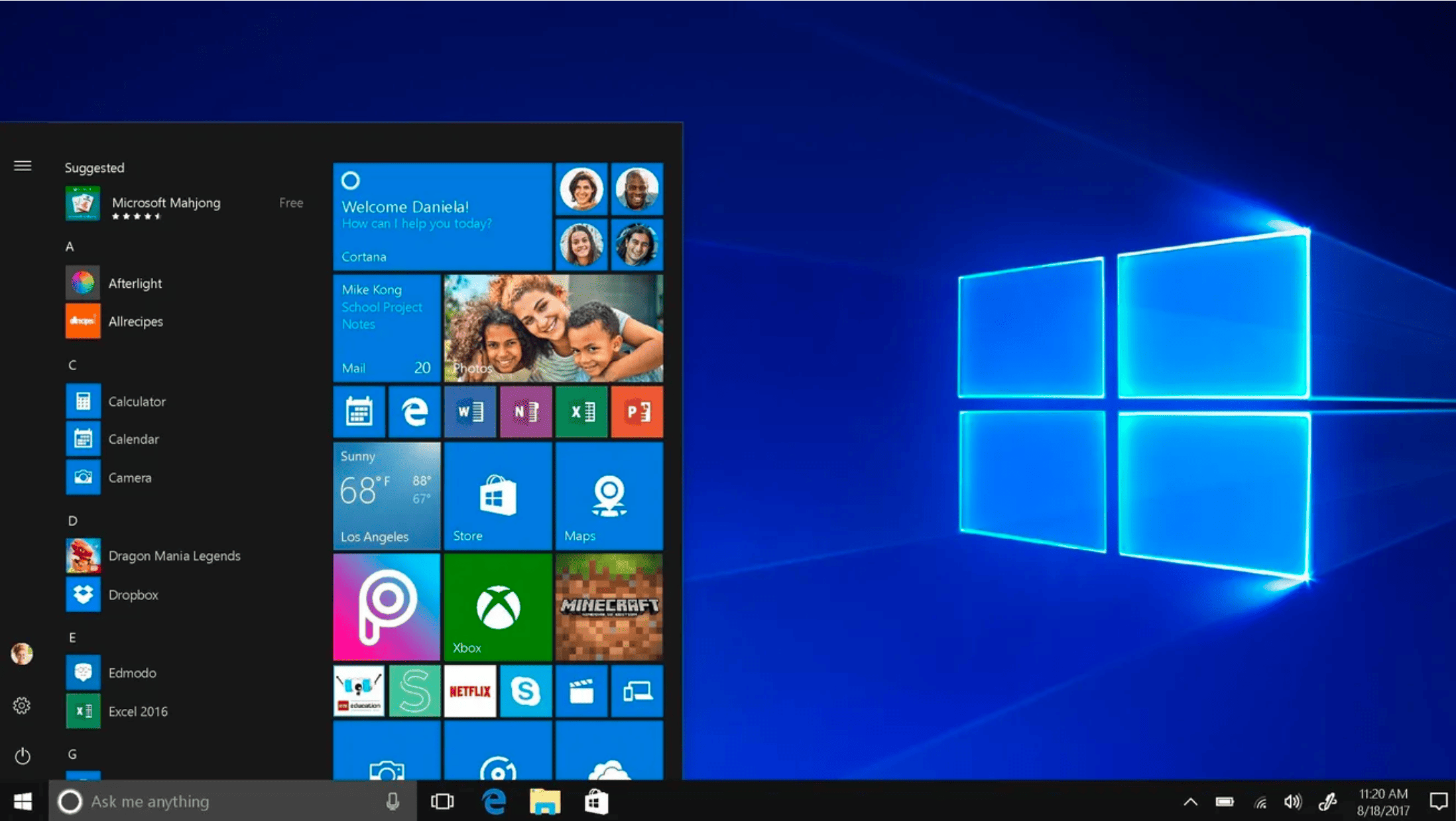
Microsoft
So, how’s that for innovation?
This article has a pretty funny title:
GUIs: The computing revolution that turned us into cranky idiots
What do you think about the article?
Key
concept
Version
Software grows and changes over its life. By giving it a new “name” or “version” number, you can upgrade and keep track of things. Sometimes you need to “roll back” to an older version – or a new version may introduce a “Breaking change.” New versions introduce new features – but also often remove features.
WikipediaIn this case (early 2021), MacOS has just released a new version of its Operating System.
It has a number 11.2.3, and they also gave it a name: macOS Big Sur.
10.15: macOS Catalina: Everything you need to know
11: macOS Big Sur: Features, tips, and tricks
12: macOS Monterey
13: macOS Ventura
14: macOS Sonoma
Full list of OS X and macOS releases: https://en.wikipedia.org/wiki/MacOS_version_history
(Snow Leopard was the best)
Key
concept
Bluetooth
A short-range wireless technology standard used to exchange data between fixed and mobile devices over short distances.
Bluetooth and Wi-Fi are often complementary, working at the same time and offering similar connectivity. Devices connected through Bluetooth are generally secure and safe against hacking.
WikipediaIn our case, we’ll be using it for a wireless mouse and keyboard. Read about how it got the name.
Ivy says
Watch this video in full-screen. It’ll look like Derek is inside your computer! 💻
Capital letters and alternate key symbols
Universal
This will work with almost any (non-modifier) key. You’ll find shift + ' to be a very common combo to type a double quote character and shift + / for a question mark.
This might seem obvious. But is it? And how can you use modifiers in your applications?
Cut
Universal
The terms “cut” and “paste” come from copy editing and traditional layout Paste-Up. This will remove the selected item or span of text and cut it away and store it in your computer’s “clipboard.”
Copy
Universal
Most commonly, you’ll select a piece of text and “copy” it to your clipboard. By default, maOS has only 1 slot to save things this way. From there, you can “paste” the content somewhere else. But this extends far beyond text. You can copy files and other things into your clipboard as well.
Paste
Universal
If you have something stored in your virtual clipboard you can “paste” is somewhere. This may be a span of text, a file, an entire webpage or text file, and many other things. The term comes from actual adhesive use in Paste-Up layout.
New
Universal
This command is universal but contextual. It will create a “new” something based on what program you are using.
In this case, try opening a new Finder window in the Finder.
New folder
Finder
Quickly create a new folder in whatever context you are in. If you are focused on the desktop, it will create a new folder there. If you are focused on a finder window, it will create it there.
You might also like to right-click to create a new folder.
Switch between open apps
Finder
This will bring up a list of your open apps and move to the next item in the list. It moves through the list to the right. To move in the opposite direction, try command + `
Start using this ASAP.
Delete file
Finder
This will move the selected file to the “trash.” The trash is really just a folder. Nothing will be deleted until you “empty” the trash.
Empty trash
Finder
After you ditched a bunch of that unneeded stuff (thank you for your service), send it away!
You’ll get a little dialog and one last chance to change your mind. Hit return to make it official (not to return it).
Contextual hints

You can usually find the most important shortcuts here!
Exercises
-
Practice using modifier keys
Write some things in TextEdit. Practice the cut, copy, and paste commands. What is the clipboard? How many things does it store at a time?
- Try switching between the Finder and TextEdit or other programs with
⌘+tab. - Create new windows in each with ⌘+n .
- Create new folders on the desktop.
- Delete them.
- Empty the trash.
- Try to do it all with no mouse, just shortcuts.
- Try switching between the Finder and TextEdit or other programs with
-
What are the next most important things?
If you were writing the next lesson… what would be the 10 next most important things you’d include? If you’re new to Macs, then what are the 10 next questions you have?
-
Download the CheatSheet app
Download the app and make sure you’ve set its permissions and it works.
Does it seem to trigger too easily? See if you can find a way to set the hold time to be longer before it brings up the cheat sheet.
Checklist
What happened today?
-
You’re getting used to using the modifier keys for shortcuts
-
You’ve checked out all of these different GUIs over the years
-
You’ve spent a little time considering an order of importance when teaching
-
You’ve downloaded an app and set its permissions in Security and Privacy